
Workflow automation for small businesses: build your first automation with Zapier, Make or n8n
A step-by-step guide to workflow automation for small businesses: choose between Zapier, Make and n8n, build a first enquiry workflow, and keep it safe.
By Gary · · 10 min read

A joinery firm in Leith gets an enquiry through the website form. Someone reads it, copies the details into a spreadsheet, sends a holding email and tells the owner. Nothing is difficult, but it happens six times a week, and on the busy weeks one of those steps gets missed. That is the kind of job workflow automation is for.
This guide explains what workflow automation for small businesses actually involves, how to choose between Zapier, Make and n8n, and how to build a first automation you can trust. It finishes with the projects we build for clients when a workflow outgrows a do-it-yourself setup.
What a workflow automation is (and what it is not)
An automation is a rule of the form “when this happens, do that”. Every tool in this guide uses the same three parts:
- Trigger: the event that starts the run, such as a new form submission, a paid invoice or a new row in a sheet.
- Actions: what happens next, such as creating a record, sending an email or posting a message.
- Data: the details carried from step to step, such as the customer’s name, email address and message.
Ordinary automation is not the same as AI. A rule that copies a form entry into a spreadsheet is predictable and cheap to run, and it does the same thing every time. AI is useful for the fuzzy parts, like summarising a long enquiry, but it is optional. We start with plain rules and add AI only where a step needs judgement, with a person checking the result.
Which tool should you start with?

All three tools can run the workflow in this guide. The right choice depends on how comfortable you are with technical set-up and where your data is allowed to go.
| Tool | Best for | Things to check |
|---|---|---|
| Zapier | Owners who want the quickest route to a working automation, with a very large list of connected apps | Free and lower plans limit tasks and steps, so check current limits before you build |
| Make | People who like seeing the whole workflow as a visual map, and need branching or repeating steps | Usage is counted in operations, and the way a scenario is scheduled affects how quickly it reacts |
| n8n | Technical users, or a small team with someone who can look after a server | You can host it yourself or use the vendor’s cloud, and self-hosting means you own updates, backups and security |
Some detail that helps when you compare them:
- Zapier calls a workflow a Zap. Its help centre says the free plan has a monthly task allowance (100 tasks a month when we checked) and that multi-step Zaps need a paid plan. Plans change, so read the current Zapier free plan page before you start.
- Make calls a workflow a scenario. According to its help centre, a scenario with a polling trigger checks for new data on a schedule (every 15 minutes by default), while an instant trigger starts the scenario as soon as the service sends the data.
- n8n publishes its code under the Sustainable Use Licence, which allows use for your own internal business purposes. If you are a consultant who wants to host workflows for other businesses, read the licence carefully first.
Our usual advice for a business with no technical staff is to start on Zapier or Make, prove that the workflow saves time, and only move to n8n or custom code if cost, control or data location becomes a real issue.
Step 1: Pick the right first workflow
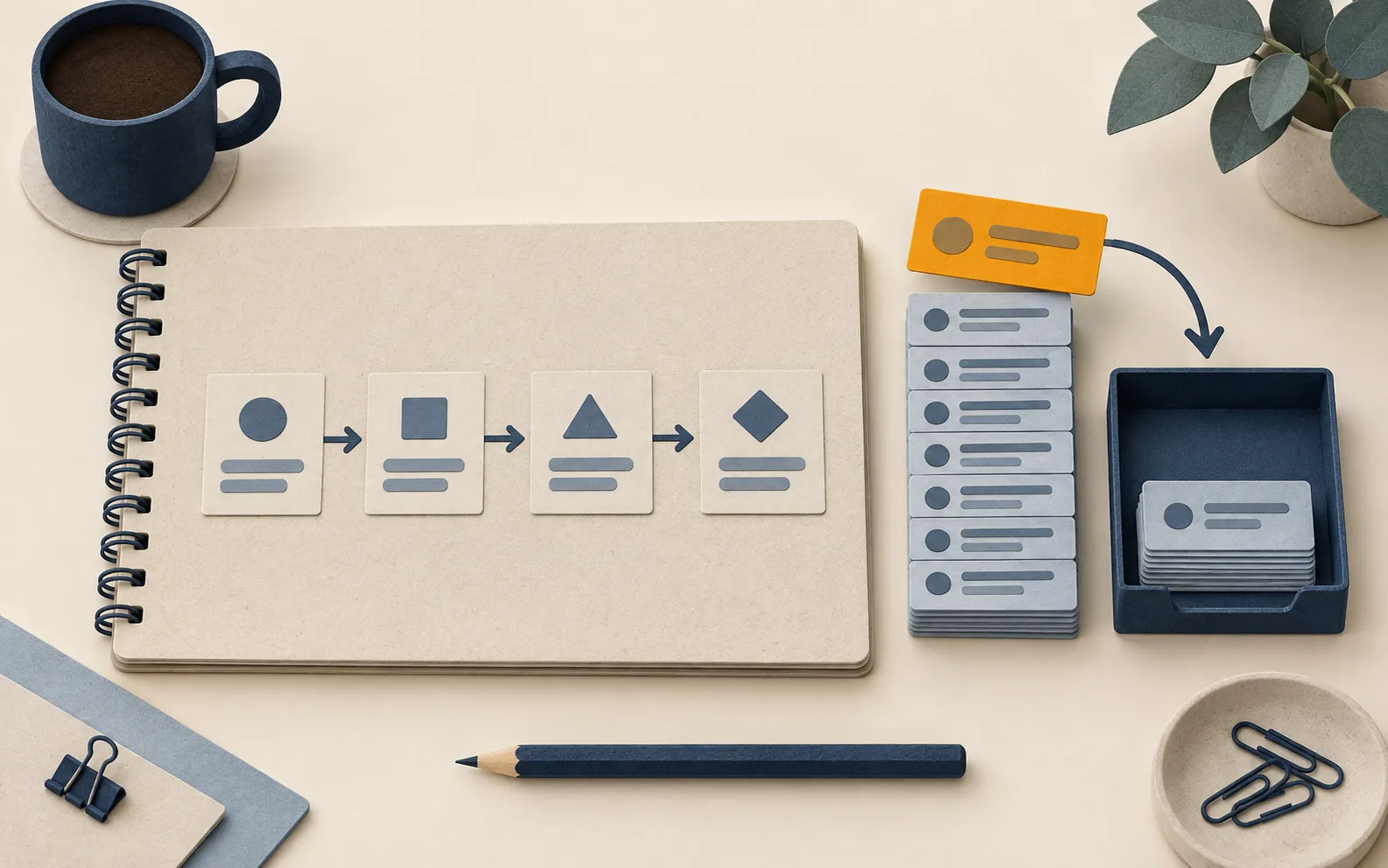
The best first automation is boring, frequent and low risk. Use this test:
- It happens at least weekly. Daily is better. A monthly job rarely repays the set-up time.
- The steps are the same every time. If the person doing it has to decide something each time, automate only the fixed part.
- A mistake is easy to spot and fix. Avoid anything that sends money, deletes records or emails customers without review.
- The data already lives in a system. A form, a spreadsheet, your accounting software or a shared inbox.
Write the workflow on paper before you open any tool, in this form:
WHEN: [what starts it]
THEN: [step 1]
THEN: [step 2]
IF: [any exception, and who handles it]
DONE WHEN: [how you know it worked]
For the joinery example it reads: when a website enquiry arrives, add a row to the enquiries sheet, email the customer to confirm receipt, and message the owner. If the form has no email address, tell the owner and stop.
Step 2: Build it in Zapier, Make or n8n
The steps below build the enquiry workflow. The menu names shift as vendors update their products, so treat them as a guide and follow the on-screen prompts where they differ.
In Zapier
- Sign in, select Create, then choose Zap.
- Set up the trigger: choose the app that receives your enquiries (your form tool, or a webhook if your website can send one) and the event, such as “New Submission”.
- Connect your account when asked, then test the trigger. Zapier fetches a real or sample entry so later steps have data to work with.
- Add an action: choose Google Sheets or Microsoft Excel, then “Create Row”, and map each form field to a column.
- Add a second action to send the acknowledgement email, and a third to message the owner. (Multi-step Zaps depend on your plan.)
- Test each step. Zapier’s help centre warns that testing an action is live, so it will really create the row and send the email. Use your own email address for the test.
- Select Publish to switch it on.
In Make
- Create a new scenario and add the first module. For a form or website, a Webhooks module gives you an instant trigger. For a spreadsheet or inbox, use a “Watch” module, which polls on a schedule.
- Run the module once so Make learns the shape of the data.
- Add modules for the row, the email and the message, and connect them in order by dragging from one to the next.
- Map the fields by selecting them from the earlier module’s output.
- Use Schedule settings to choose how often a polling scenario runs.
- Run the scenario once with test data, check the results, then switch scheduling on.
In n8n
- Decide where it will run. The vendor’s cloud is the simplest. Self-hosting on a small server or in Docker keeps data on infrastructure you choose, but you become responsible for updates, backups and access control.
- Create a workflow and add a trigger node, such as a webhook or a form trigger.
- Add nodes for the spreadsheet row, the email and the message. Each node shows its input and output, which makes mistakes easy to see.
- Execute the workflow manually with test data, then activate it.
Step 3: Test it like a sceptic

A workflow that works once has not been tested. Before you rely on it, run through this checklist with dummy data:
- The normal case: one clean enquiry, and check every step ran.
- A missing field: no email address, or an empty message. Does it stop, or send a broken email?
- A very long or odd entry: accents, line breaks, a pasted link.
- A duplicate: the same person submitting twice.
- A failure: temporarily disconnect the spreadsheet and see what happens and who finds out.
Then decide who is told when a run fails. Every tool has a run history or execution log. Zapier, for instance, lets you replay failed runs from its history (which runs can be replayed depends on your plan). Put a weekly ten-minute check in someone’s diary, and set up failure alerts to a shared inbox rather than a single person’s email.
Risks to manage before you go live
Most automation problems are quiet ones: a step fails, nobody notices, and three weeks later a customer is waiting for a reply that never left.
- Personal data. Enquiries contain names, emails and sometimes more. If you send them through a third-party tool, that tool is acting as a processor for you. The ICO explains that a written contract is needed whenever a controller uses a processor, and that you should only use processors that give sufficient guarantees. Read the vendor’s data processing terms, and update your privacy notice if it no longer describes what you do.
- Credentials. Automations hold logins to your systems. Use a dedicated account with the minimum access it needs, not the owner’s login, and remove it when the workflow is retired.
- Runaway loops and volume. A trigger that fires on its own output can send hundreds of emails. Test with limits, and check the usage counters in your plan.
- Customer-facing messages. Keep automatic emails short and factual, such as “we have your enquiry and will reply within one working day”. Do not let a workflow promise prices, dates or outcomes.
- Knowing what exists. Keep a simple register with the name of each automation, what it does, who owns it and which accounts it uses. When the person who built it leaves, that register matters.
- Cost creep. Free plans are meant for trying things out. If a workflow becomes part of how you operate, budget for a paid plan and read the limits before you rely on it.
Practical applications we could deliver for customers

Once one workflow works, the same pattern repeats across a business. These are the kinds of projects we could build and support through our workflow automation service. They are examples of the work, not case studies.
Enquiry and quote follow-up
For a trades business, a workflow that logs each enquiry, sends a confirmation, creates a follow-up task if nobody replies within two working days, and asks for a review after the job is complete. The owner keeps the quote itself, which stays a human decision.
Invoice and payment chasing
For a two-person bookkeeping practice, a workflow that reads a list of overdue invoices from the accounting software each week and drafts reminder emails for the bookkeeper to review and send. It saves the copying and pasting while a person keeps control of tone and timing. Where this touches your books, it fits with our accounting process improvement work.
New client and new starter onboarding
For a small dental or physiotherapy practice, a checklist that creates the folder structure, sends the welcome pack, books the induction tasks and reminds the manager of what is still open. Health information needs particular care, so we would map exactly where each piece of data goes before building anything.
Document and approval routing
For a small firm, a workflow that files incoming documents into the right folder, names them consistently and asks the right person to approve them. Approvals and sign-offs are logged, so you can see who agreed what and when.
Reporting from many sources
For a shop or a services business, a weekly summary that pulls figures from the till or booking system, the website and the accounts into one sheet or dashboard, so the owner sees the numbers without opening five tools. When that outgrows a spreadsheet, it becomes one of our internal tools and dashboards.
Where AI helps inside a workflow
Some steps do benefit from AI: summarising a long enquiry, classifying an email by topic, or drafting a first reply. We add these as clearly labelled steps with a human approving the output, and we keep personal and financial data out of them unless the tool and the contract allow it.
How to start this week
- List ten tasks your team repeats. Mark the ones that are weekly, rule-based and low risk.
- Choose one and write it in the WHEN / THEN / IF / DONE format above.
- Build it on a free plan or trial with dummy data, and run the test checklist.
- Add it to your register and diarise a weekly check for the first month.
- Measure the result. Count minutes saved per week and errors avoided. If you cannot see a benefit after a month, switch it off.
If the list of candidate tasks is long, or you cannot tell which ones to automate first, a process audit is the quickest way to find out. We map how work moves through your business, then rank the fixes by effort and payoff, and some of them turn out to need a better process rather than software.
Where we can help
If you would rather have your first workflows built and documented properly, take a look at our workflow automation service for Edinburgh and Scottish small businesses. We start with the plainest tool that does the job, we keep a person in the loop wherever a mistake would matter, and we hand over documentation so you are not dependent on us. To find out where your time is going before you commit to anything, book the free process audit.