
AI chatbots for small businesses: a practical setup guide to ChatGPT, Claude, Gemini and Copilot
How to set up ChatGPT, Claude, Gemini and Microsoft Copilot as useful business assistants, what to keep out of them, and seven practical chatbot applications small businesses are putting to work.
By Gary · · 12 min read

Most small business owners we speak to in Edinburgh have tried an AI chatbot. Far fewer have set one up properly, and that is where the value is. A blank chat window gives you generic answers, while a chatbot that has been given your prices, your tone of voice and your rules can take a real piece of work off your plate.
This week’s guide covers the four tools we are asked about most, how to configure each one as a proper business assistant in under an hour, and the practical applications that tend to pay back fastest.
Which chatbot should you start with?

Start with the one that sits closest to where your work already lives. All four are capable. The bigger wins come from connecting the assistant to your documents and email, not from choosing the “cleverest” model.
| If your business mostly runs on… | Start with | Why |
|---|---|---|
| Microsoft 365 (Outlook, Word, Excel, Teams) | Microsoft Copilot | Works inside the apps your team already uses and respects existing file permissions. |
| Google Workspace (Gmail, Drive, Docs) | Google Gemini | Built into Gmail and Docs, and can read files straight from Drive. |
| Long documents, policies, contracts, detailed writing | Claude | Strong at careful reading, summarising and following detailed instructions. |
| A mix of tools, or you want the widest range of features | ChatGPT | The most general-purpose option, with custom GPTs you can share with staff. |
Whichever you choose, use a business or team plan rather than a personal free account for company work. Business plans typically exclude your conversations from model training by default and give you admin control over who has access. Plans and pricing change frequently, so check the provider’s current terms before you commit.
The one template that makes every chatbot better

Every tool below has a place to store standing instructions. What you put there matters more than which tool you choose. Copy this template, fill it in, and paste it into whichever assistant you set up:
ROLE: You are the [job, e.g. customer enquiries assistant] for [business name],
a [what you do] based in [location].

AUDIENCE: You are helping [who, e.g. our office team / me, the owner].

SOURCES: Only use the attached documents for facts about our prices,
services, policies and availability. If the answer is not in them,
say "I don't know - check with [name]" rather than guessing.

TONE: [e.g. friendly, plain British English, no jargon, short paragraphs].

ALWAYS: [e.g. suggest a next step; flag anything involving a complaint,
refund or safety issue for a human].

NEVER: [e.g. promise a price, date or discount; give legal, tax or
medical advice; make up details about jobs or customers].

FORMAT: [e.g. draft replies under 150 words, ending with our sign-off].
The SOURCES and NEVER lines do most of the work. They are what stop a chatbot sounding confident about things it has invented.
How to set up ChatGPT for your business
ChatGPT offers two ways to build a reusable assistant: Projects, for organising your own ongoing work, and custom GPTs, for an assistant you can share with your team.
To create a custom GPT:
- Sign in to ChatGPT on a paid or business plan and open GPTs in the sidebar, then choose Create.
- Switch to the Configure tab. Give it a clear name, such as “Quote Drafting Assistant”.
- Paste your filled-in template into Instructions.
- Under Knowledge, upload the files it should rely on: price list, service descriptions, FAQs, terms and conditions. Keep them short, current and clearly titled.
- Add three or four conversation starters that show staff how to use it, e.g. “Draft a reply to this enquiry: …”.
- Switch off any capabilities you don’t need (such as image generation) to keep answers focused.
- Set sharing to only people in your workspace, not public.
Use Projects when the work is ongoing for one person, such as a client file, a funding application or month-end commentary. Create a project, add the relevant files, set project instructions, and every chat inside it starts with that context.
Check before you start: in Settings → Data controls, confirm whether your conversations are used to improve the model. On business plans this is off by default. On personal plans you should switch it off.
How to set up Claude Projects
Claude’s Projects give you a shared workspace with its own knowledge base and instructions. They are particularly good for document-heavy work such as policies, procedures, tenders and contracts.
- In Claude, open Projects and choose Create project. Name it after the job, e.g. “Staff Handbook Assistant”.
- Open Project instructions (sometimes shown as “Set custom instructions”) and paste your template.
- Under Project knowledge, add your source files. Claude handles long documents well, so a full operations manual or a set of policies is fine.
- On a Team plan, share the project with colleagues so everyone gets the same answers from the same sources.
- If you use Google Workspace or other supported tools, look at Claude’s connectors so it can search your Drive or email with your permission, rather than you uploading copies.
A good first test: ask it three questions you already know the answer to, and one you know is not covered. The fourth answer tells you whether your SOURCES rule is working.
How to set up Google Gemini Gems
If your business runs on Gmail and Google Drive, Gemini is the path of least resistance. Gems are Gemini’s reusable assistants.
- Go to gemini.google.com, open Gems (or the Gem manager), and choose New Gem.
- Name the Gem and paste your template into Instructions.
- Add knowledge files, ideally straight from Google Drive, so that when you update the Doc the Gem picks up the change.
- Use Preview on the right to test it before saving.
- With a Google Workspace business account, also try Gemini in the Gmail side panel. Ask it to summarise a long thread or draft a reply based on a Doc.
Gems are best kept narrow: one Gem for enquiry replies, another for social posts, another for summarising supplier contracts.
How to set up Microsoft Copilot
Microsoft’s offer has two layers, and people often confuse them:
- Copilot Chat is available to most Microsoft 365 business users. It is a secure chat assistant, and you can attach files to it, but it does not automatically search your mailbox or SharePoint.
- Microsoft 365 Copilot is a paid add-on. It works inside Outlook, Word, Excel and Teams, and can draw on your email, meetings and files, within the permissions each person already has.
To build a simple Copilot agent:
- Open Copilot Chat (at m365.cloud.microsoft or in Teams) and look for Create agent. For more advanced agents, use Copilot Studio.
- Describe what the agent should do, then refine the Instructions using your template.
- Add knowledge: specific SharePoint sites, folders or files. Point it only at content that is current and approved.
- Test it, then share it with the relevant team.
An important housekeeping step: Copilot respects file permissions, so if a sensitive spreadsheet is shared with “everyone”, Copilot can surface it. Tidy up sharing permissions before switching it on.
What never goes into a chatbot

Whatever tool you choose, agree these rules with your team and write them down:
- No customer personal data in personal or free accounts. Use a business plan with training switched off, and check where your data is stored.
- No passwords, bank details, card numbers or API keys, ever.
- No special category data, such as health information, without a proper assessment. The ICO expects a Data Protection Impact Assessment for most new AI uses involving personal data. Its guidance on AI and data protection is the place to start.
- A person checks anything that leaves the business. Quotes, advice, contracts and complaint responses need human sign-off.
- Keep your source documents current. Most “wrong” AI answers come from out-of-date price lists and policies, not from the model itself.
A one-page AI use policy covering the list above is one of the most valuable things a small business can put in place this year. It also means staff stop quietly using unapproved tools.
Seven practical chatbot applications for small businesses
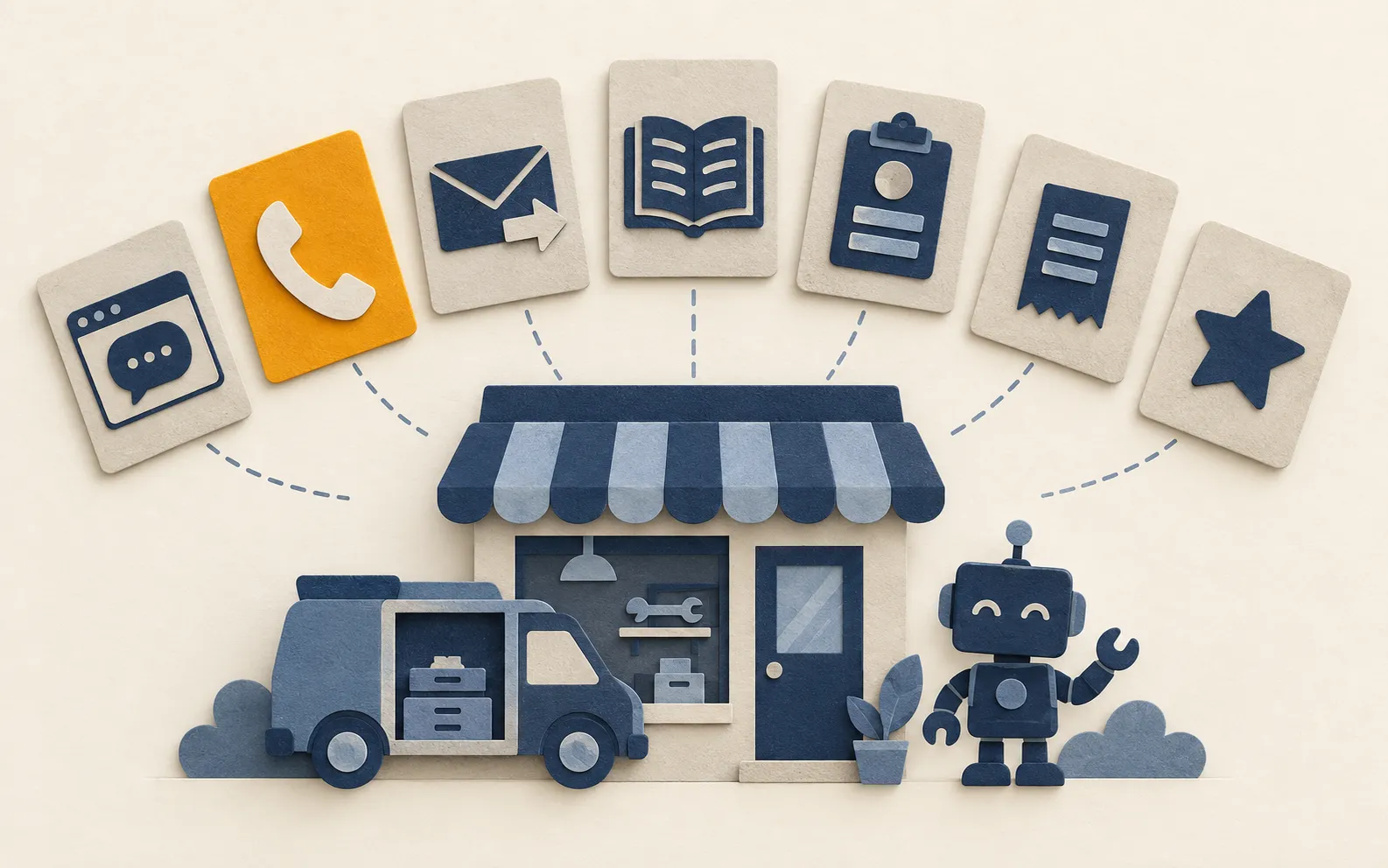
Setting up an assistant is step one. The value comes when it is connected to a real, repeated task. These are the applications we see paying back most reliably for sole traders and small teams:
1. Website enquiry assistant
A chat assistant on your website that answers common questions from your own approved content (services, areas covered, opening hours, how quoting works), collects the visitor’s details and passes a tidy summary to your inbox or CRM. It hands over to a person for anything it cannot answer.
Best for: businesses that get the same ten questions every week. Watch out for: assistants that answer from the open internet rather than your content.
2. Missed-call and out-of-hours responder
For trades and field businesses, a missed call is often a lost job. An AI answering service, or a simpler automatic text-back, captures the caller’s name, need and postcode, books a callback and sends you a summary, so work is not lost while you are on a roof or under a sink.
Best for: electricians, plumbers, builders, garages and clinics. Watch out for: callers who clearly want a human. Always offer that route.
3. Inbox triage and draft replies
The assistant reads incoming email, labels it (new enquiry, existing customer, supplier, invoice, spam), and drafts a reply in your tone for you to approve. You stay in control of what is sent, but the blank-page work disappears.
Best for: owners who spend the first hour of every day in their inbox.
4. Internal knowledge assistant
A Claude Project, custom GPT or Copilot agent loaded with your staff handbook, procedures, pricing rules and product information. New starters ask it “how do we handle a returned item?” instead of interrupting the owner.
Best for: teams of three or more, or anyone onboarding seasonal staff.
5. Quote and proposal drafting
Give the assistant your pricing rules, standard inclusions and past proposals. Paste in the job notes, and it produces a structured first draft for you to check and adjust. Pricing decisions stay with you. The typing does not.
6. Receipt, invoice and document extraction
AI reads PDFs, receipts and supplier invoices and pulls out the date, supplier, amounts and VAT into a spreadsheet or your accounting software, ready for review. This is one of the most dependable uses of AI because every output can be checked against the source document.
7. Review and social replies
A narrow assistant that drafts responses to Google reviews and social comments in your voice. It should always escalate complaints to a person rather than trying to resolve them itself.
How to choose your first project
Pick one task that is repeated at least weekly, follows a fairly predictable pattern and has a clear right or wrong answer you can check. Measure how long it takes today. Set up the assistant, run it alongside the manual process for two weeks, and compare.
If it saves time without creating new checking work, expand it. If it does not, you have learned something cheaply. Sometimes the better answer is ordinary workflow automation with no AI at all, and that is always worth considering first.
If you would like help choosing and setting up the right first project, our practical AI consulting starts with exactly this question. We are based in Edinburgh and work with small businesses across Scotland and the UK. We will tell you honestly when a chatbot is not the right tool.